Testing conversational journeys — especially ones powered by AI agents — is hard. You can click through the preview, but that doesn't scale if you have a complex Journeys suite: a single journey can branch into hundreds of realistic paths depending on how a user phrases things, what language they speak, or what mood they're in. Manually walking each one is slow, inconsistent, and almost impossible to repeat as you iterate.
This guide walks you through connecting Turn's Journeys Simulation API to Maxim's Simulation tool so you can automatically run your journeys against realistic, LLM-powered user personas — and catch regressions before your real users do.
Before you start, make sure you already created an account on Maxim. If you haven't, you can find instructions here: Evals & Logs.
At a high level, there are essentially 3 steps:
Set up a simulation: this is how Maxim and your Journeys talk to each other
Create a dataset: this is how you define different scenarios you want to test
Run the simulation: run the simulation with the scenarios you set up
1. Set up a simulation
1.1 Grab your Turn.io API token
Head to Settings →API & Webhooks in Turn and create an API token. Copy and paste this somewhere safe, you'll need this later.
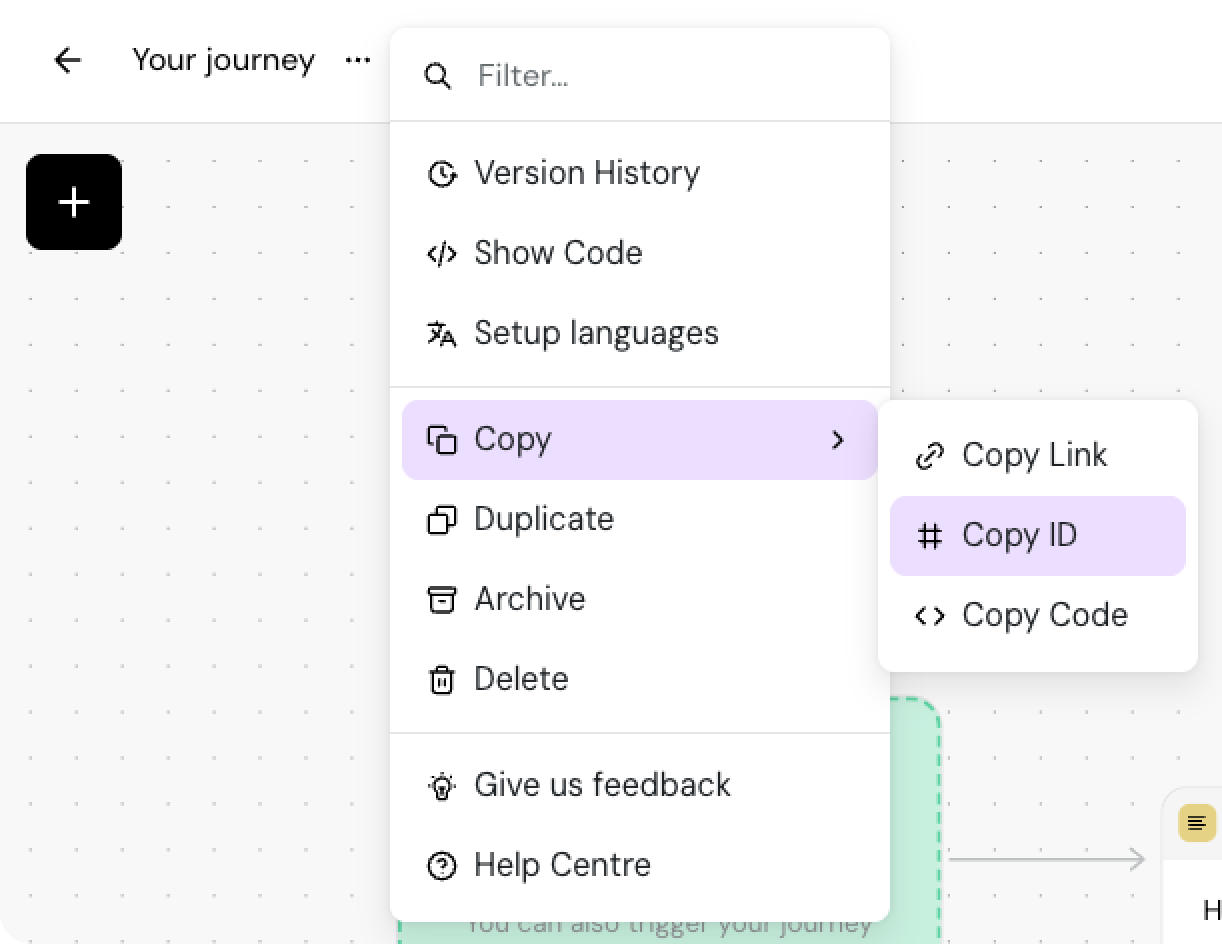
Open the journey you want to test and copy its ID. Copy and paste this somewhere safe, you'll need this later.
1.2 Create a simulation in Maxim
Maxim connects to Turn.io via an HTTP endpoint. Don't worry — if this sounds too technical, this guide was written to make things easy for everyone.
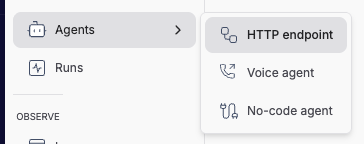
In Maxim, navigate to Agents → HTTP endpoint
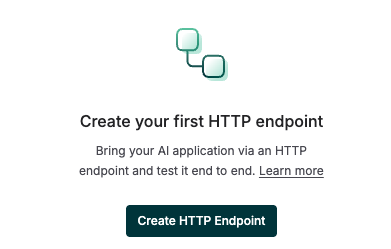
Then, create a new HTTP endpoint
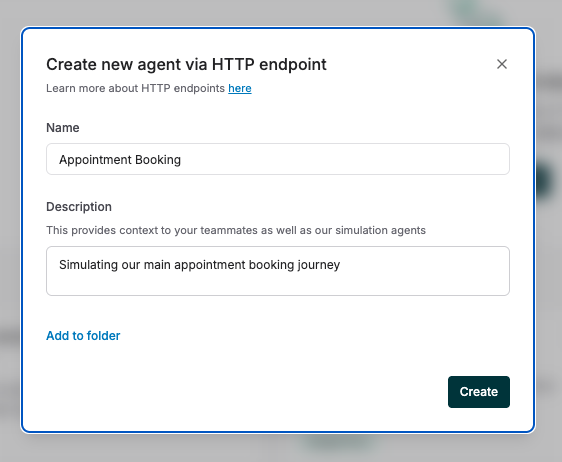
Give it a name that will help you remember it later
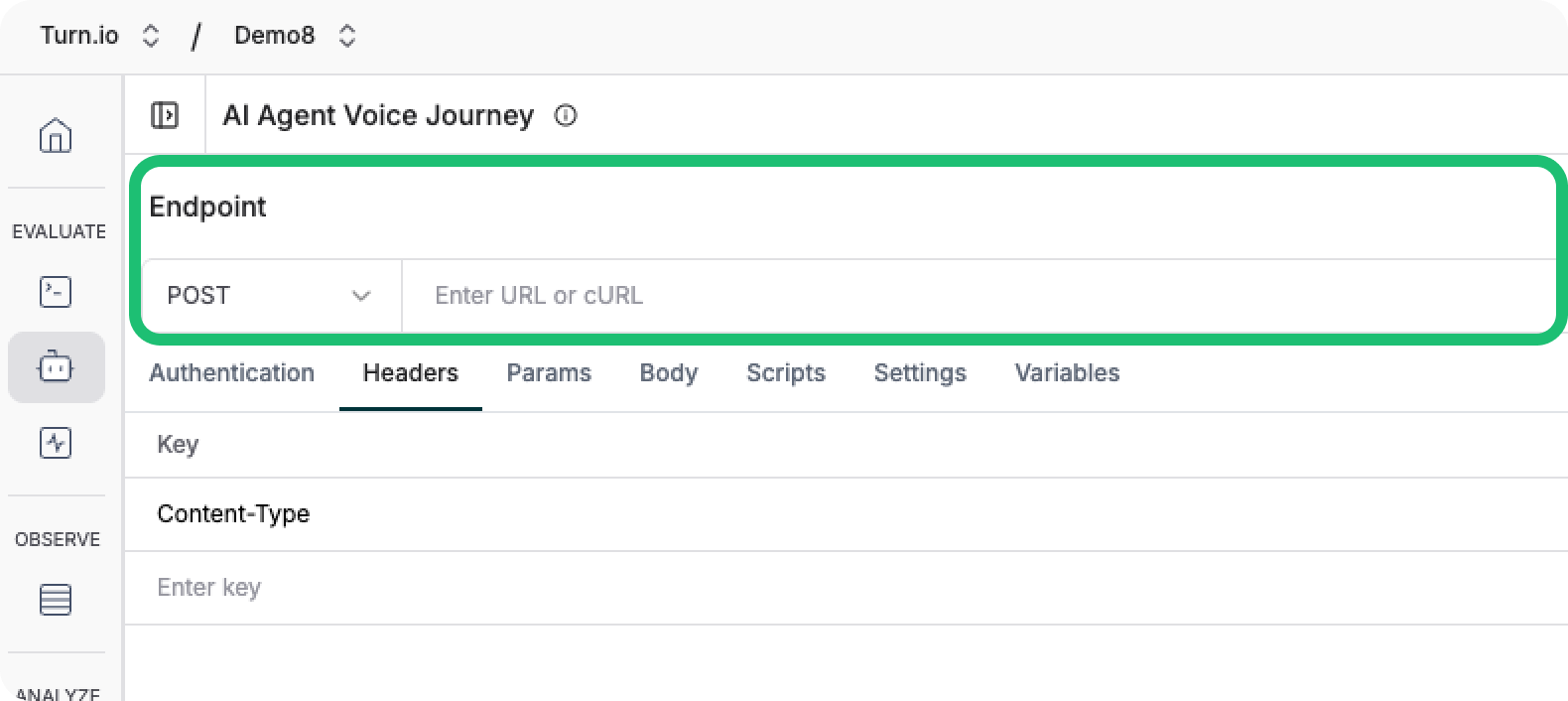
Near the top, Find the Endpoint field:
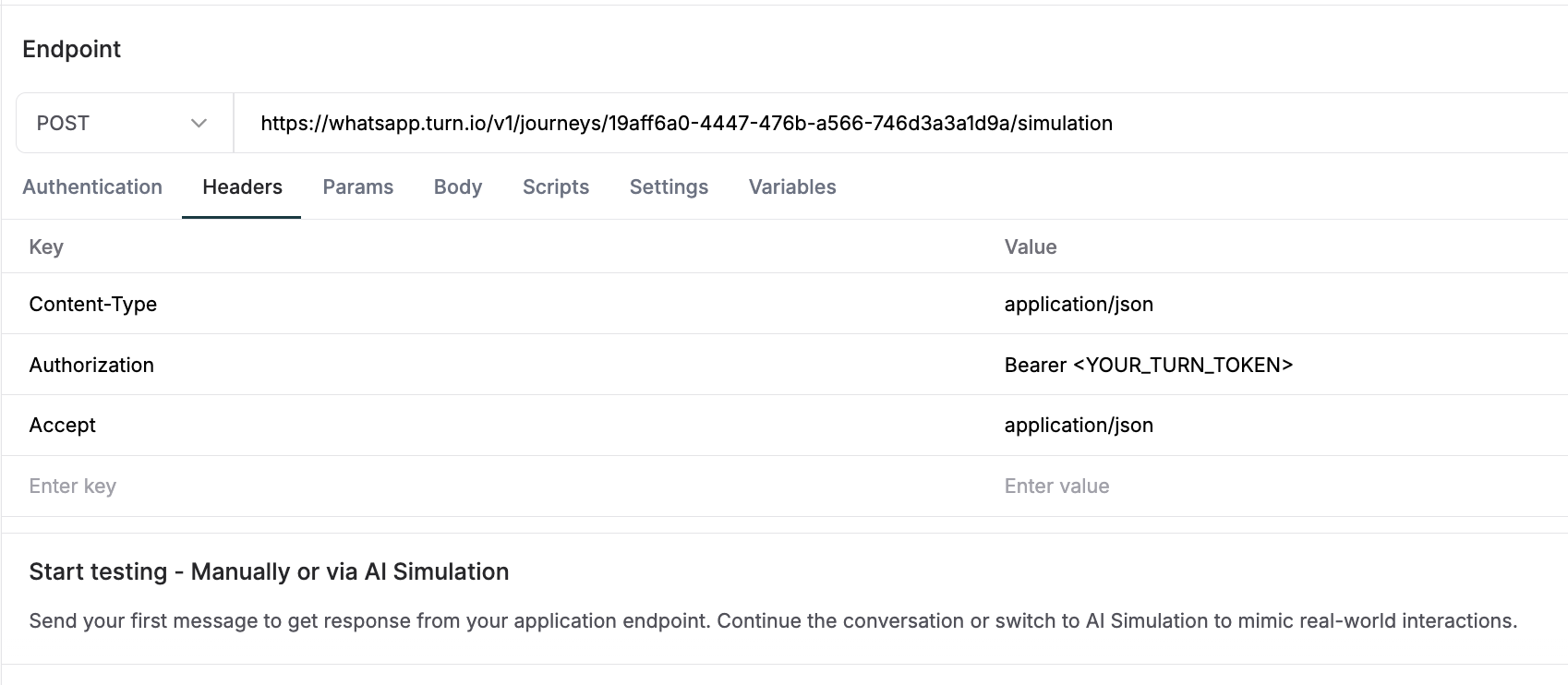
And set it to (replacing <JOURNEY_UUID> with the the Journey ID you saved earlier):
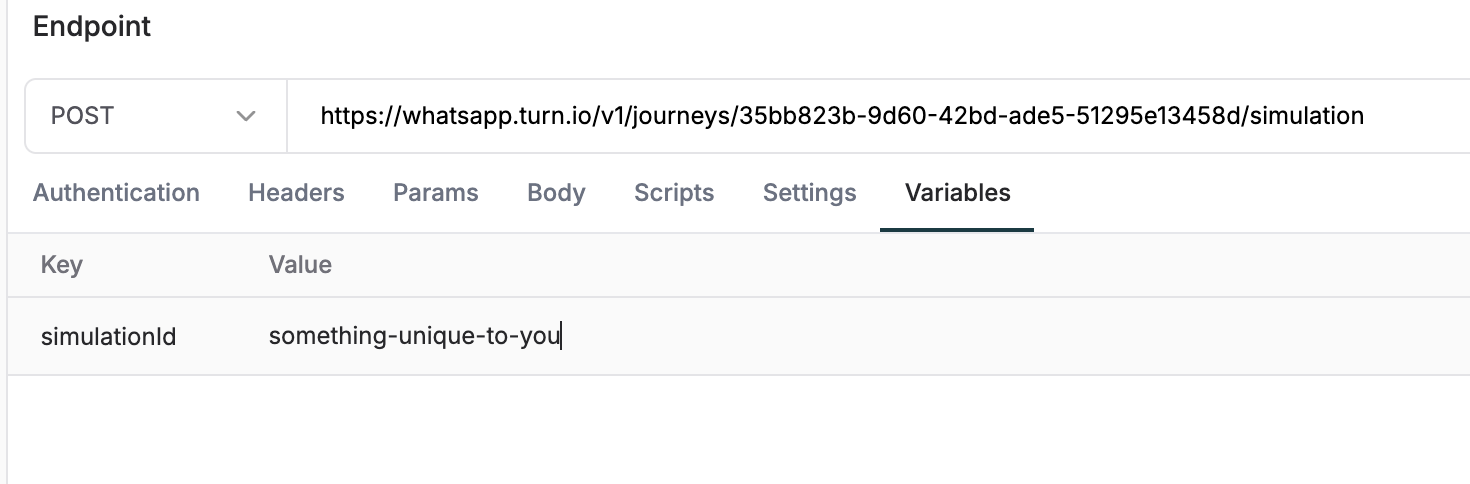
Finally, click on Variables and fill out the simulationId variable with something unique to you, doesn't matter what it is as long as it's between 6-20 characters:
1.3 Test your setup
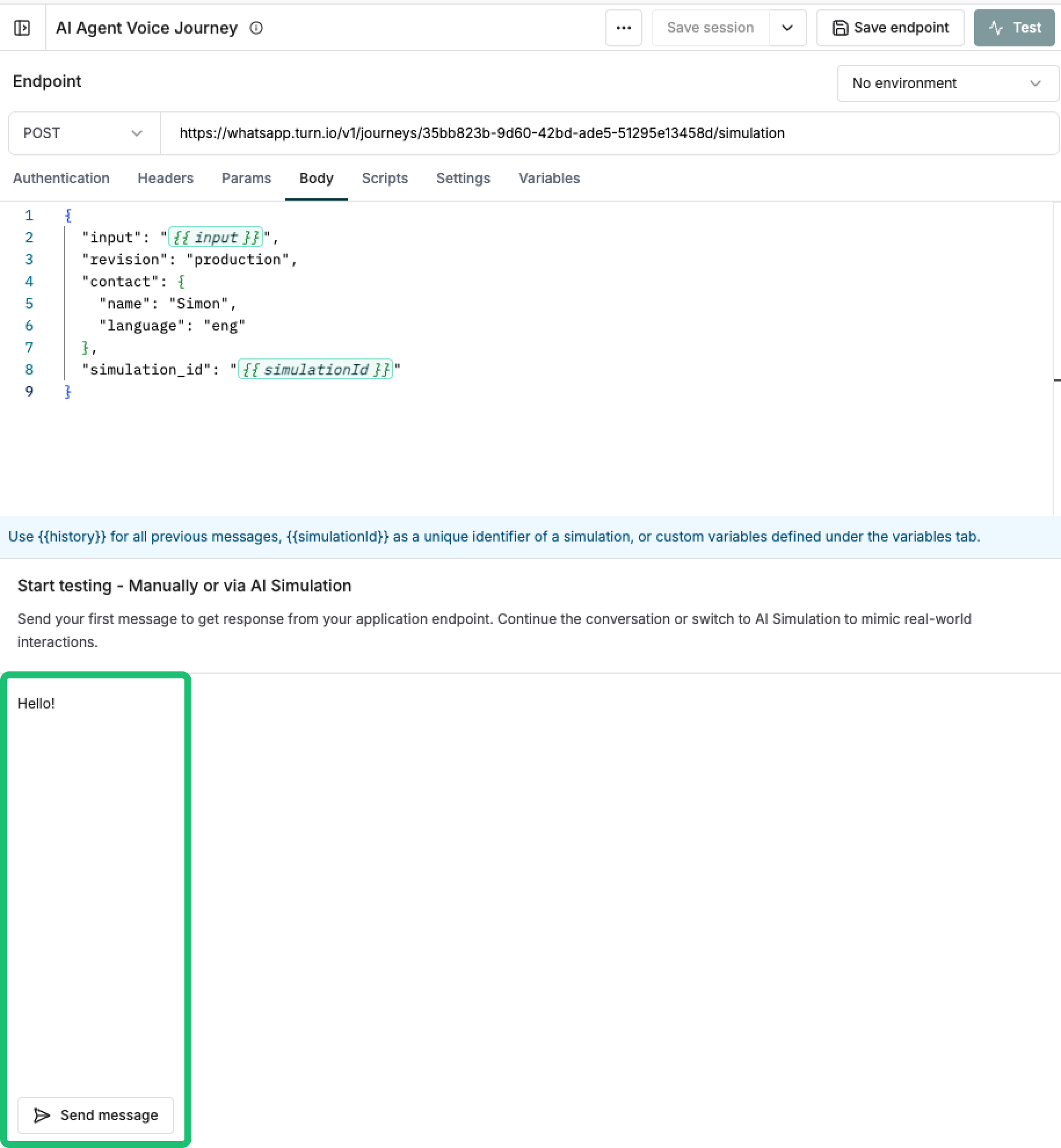
Send a first message to check everything is well configured:
1.4 Do a single AI simulation
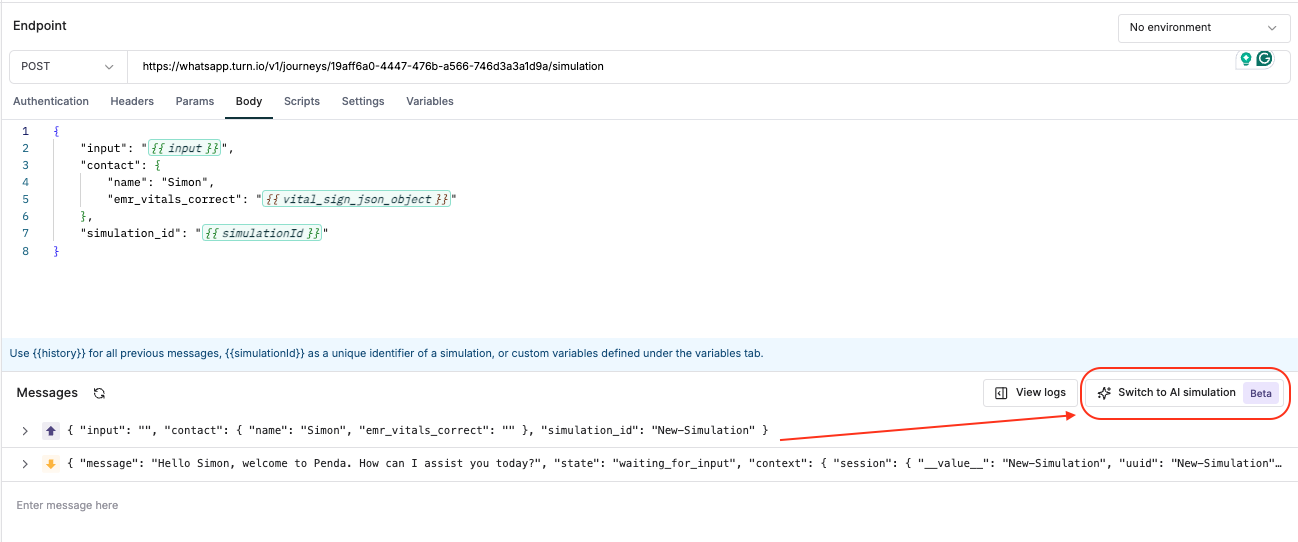
Finally, let's test our setup with an AI simulation. Click on the Switch to AI simulation button:
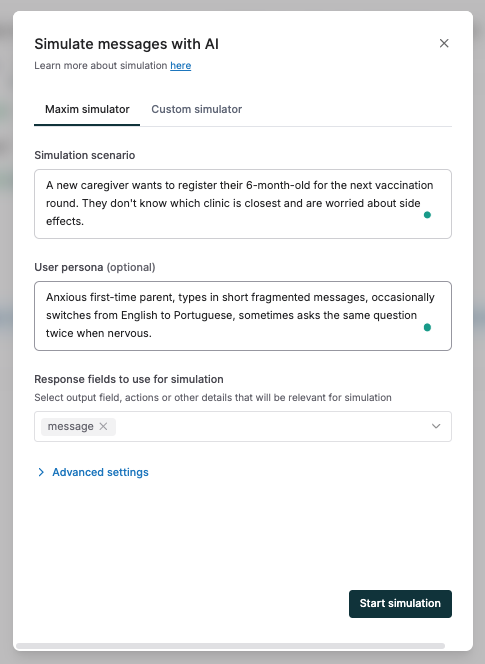
And fill out the simulation scenario, and ensure you add message to the Response fields to use in simulation field. It should look like this:
A good scenario + persona combo catches problems no scripted test would find.
Scenario — describe the situation the user is in. Be specific:
A new caregiver wants to register their 6-month-old for the next vaccination round. They don't know which clinic is closest and are worried about side effects.
Persona — describe how the user talks:
Anxious first-time parent, types in short fragmented messages, occasionally switches from English to Portuguese, sometimes asks the same question twice when nervous.
Maxim recommends mixing emotional states and expertise levels across runs — calm vs. frustrated, first-time vs. returning, literate vs. low-literacy. This is especially important for AI Agent blocks, where intent recognition has to hold up against messy real-world phrasing.
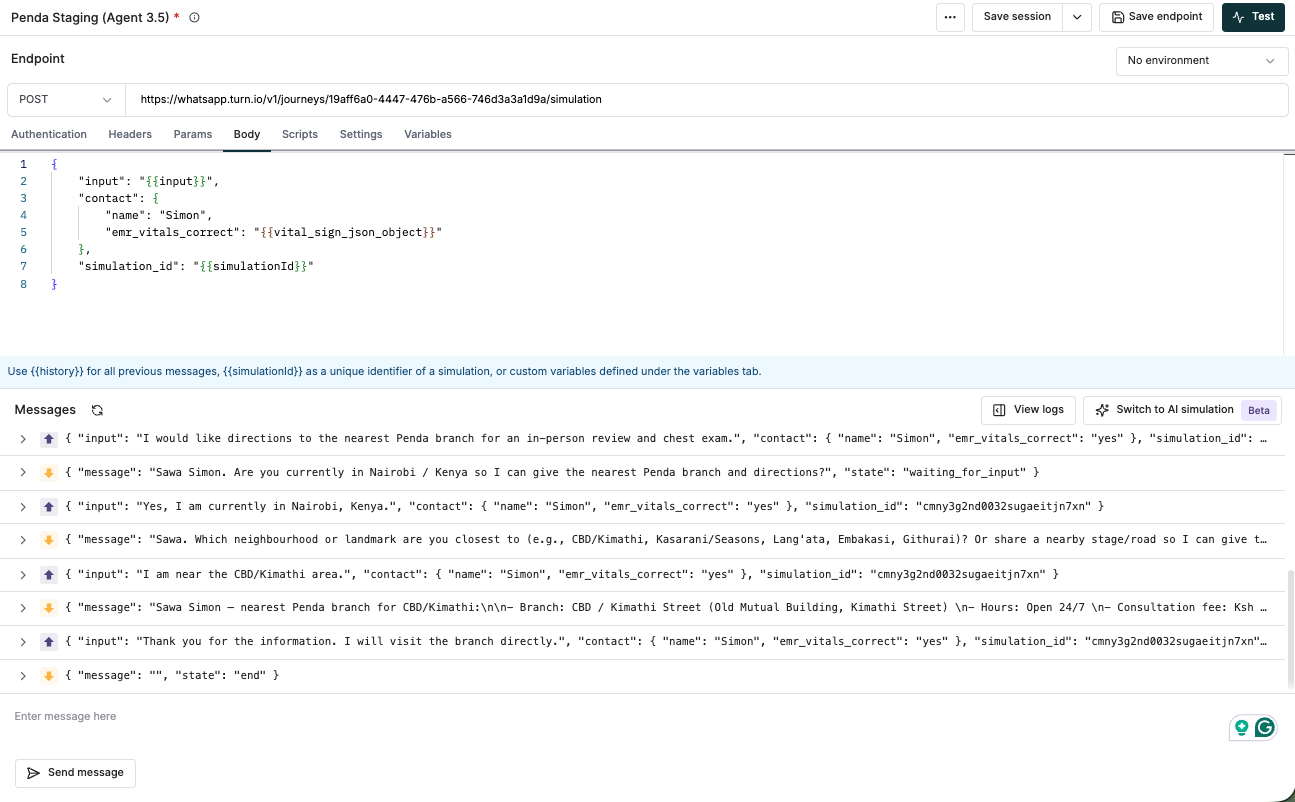
Hit Start Simulation. And you're done! 🎉 You'll see each generated input and output in the message history.
Of course, you don't want to be doing all this work for a single simulation. Let's look at how to run multiple scenarios.
Don't forget to save your endpoint so that you don't lose your changes!
2. Create a dataset
A single scenario gives you one data point. Real confidence comes from running dozens of scenarios in a batch, across multiple personas, every time you change a journey. Maxim supports this through datasets and simulated session runs — instead of manually launching one conversation at a time, you define a spreadsheet of scenarios and let Maxim work through them in parallel.
This is where journey testing starts to feel less like QA and more like CI.
2.1 Build a scenario dataset
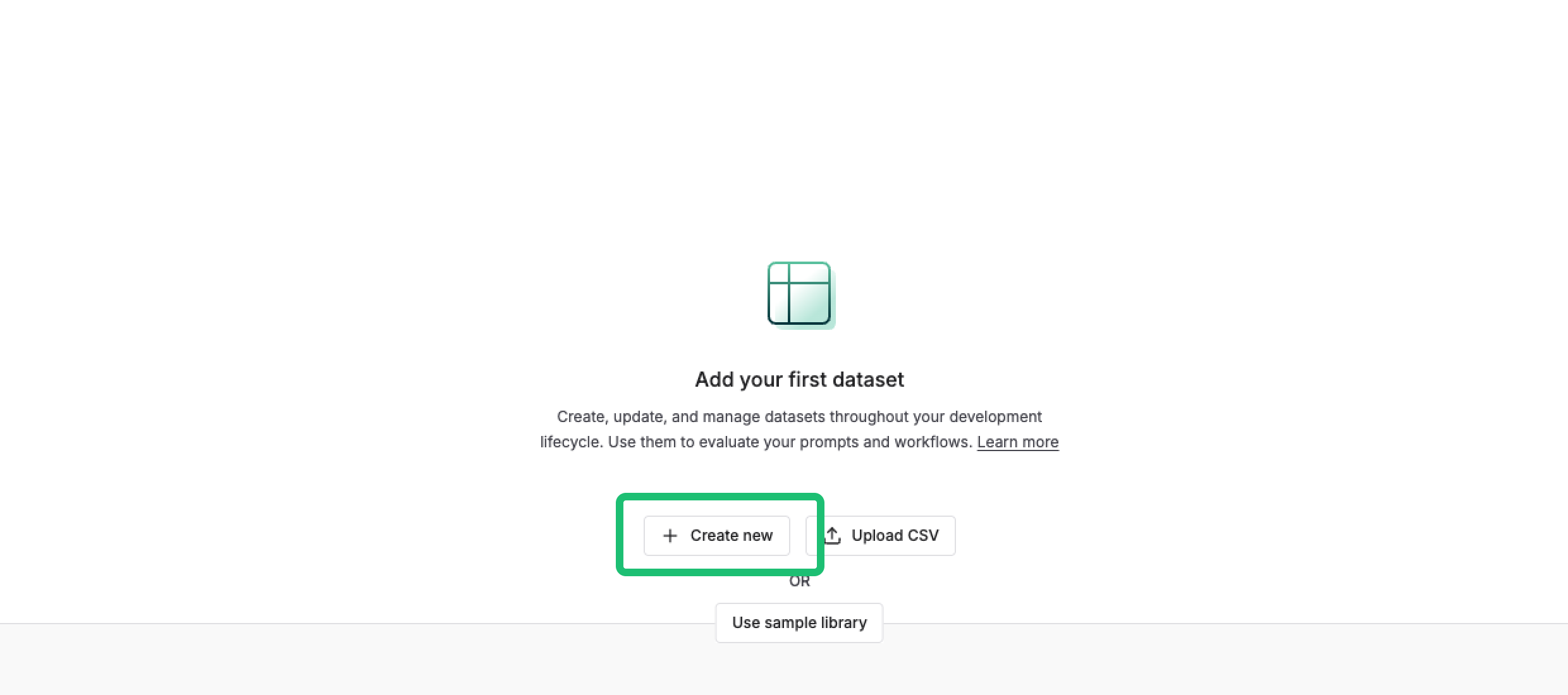
In Maxim, head to Datasets → New Dataset:
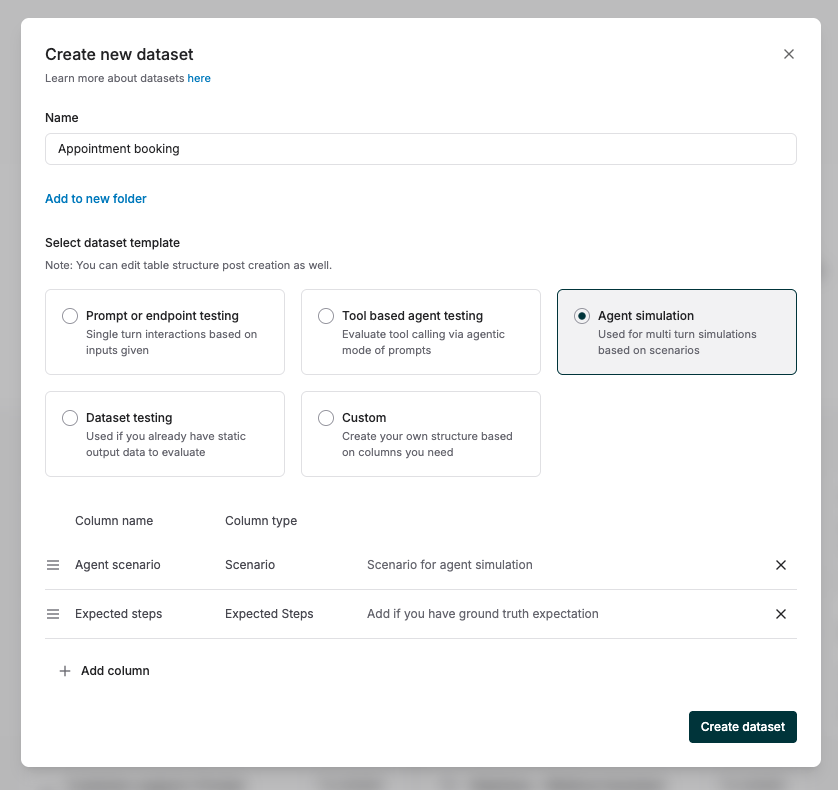
And select an Agent simulation template, and click Create dataset:
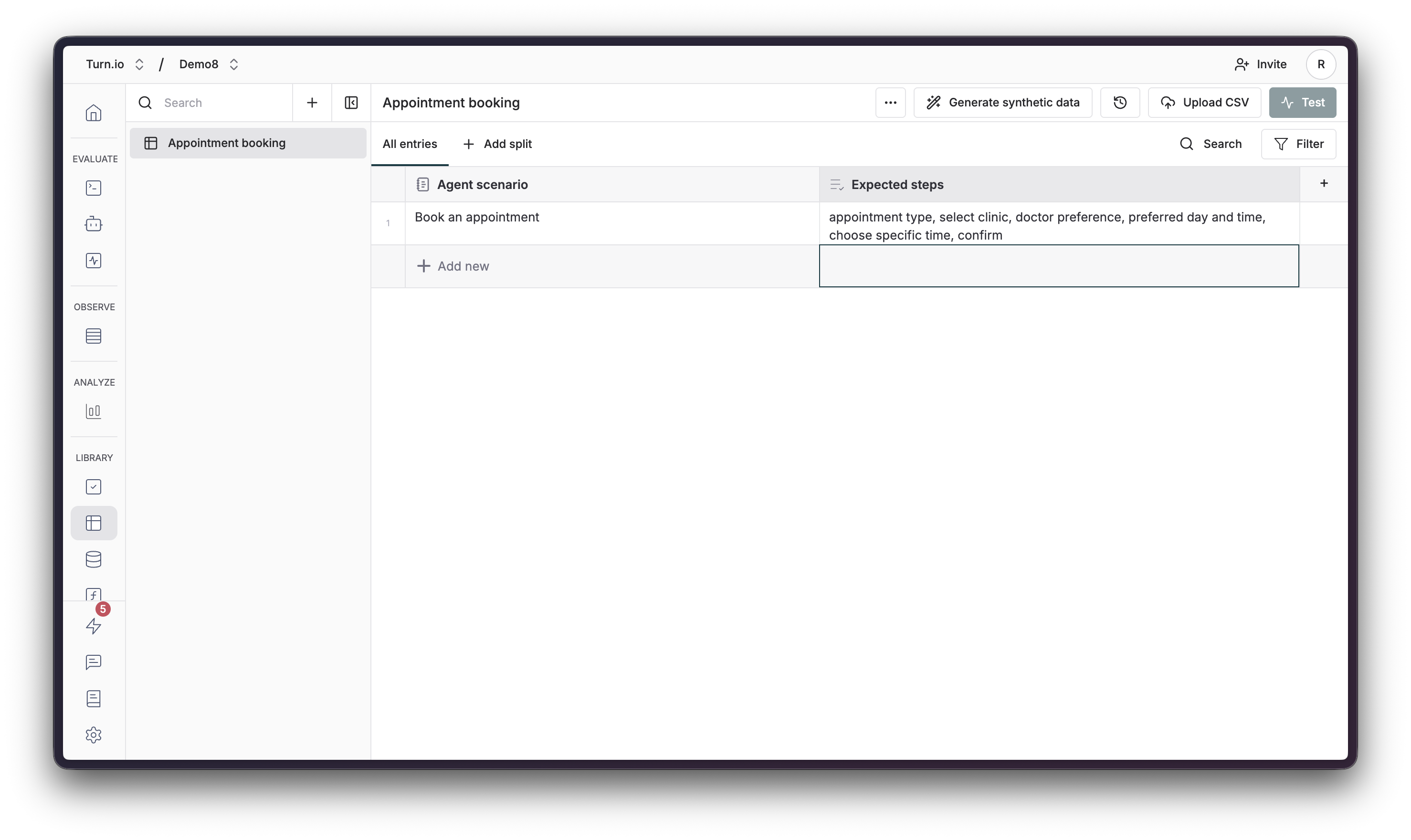
Now, just fill in your scenarios on the table. Each row represents one simulation Maxim will run. Ideally, each row should have:
Column
Purpose
Scenario
The situation the simulated user is in (e.g. "New caregiver registering a 6-month-old for vaccination").
Persona
How the user talks (e.g. "Anxious first-time parent, short messages, switches to Portuguese").
Expected steps
What a successful run should look like — which intents should fire, which cards should be reached, what outcome counts as "done".
Start with just a few rows covering your happy paths and your top 3–4 known edge cases. You can always grow the dataset as you find new failure modes in production. In the end, it should look something like this:
Enriching your data set with custom profile fields
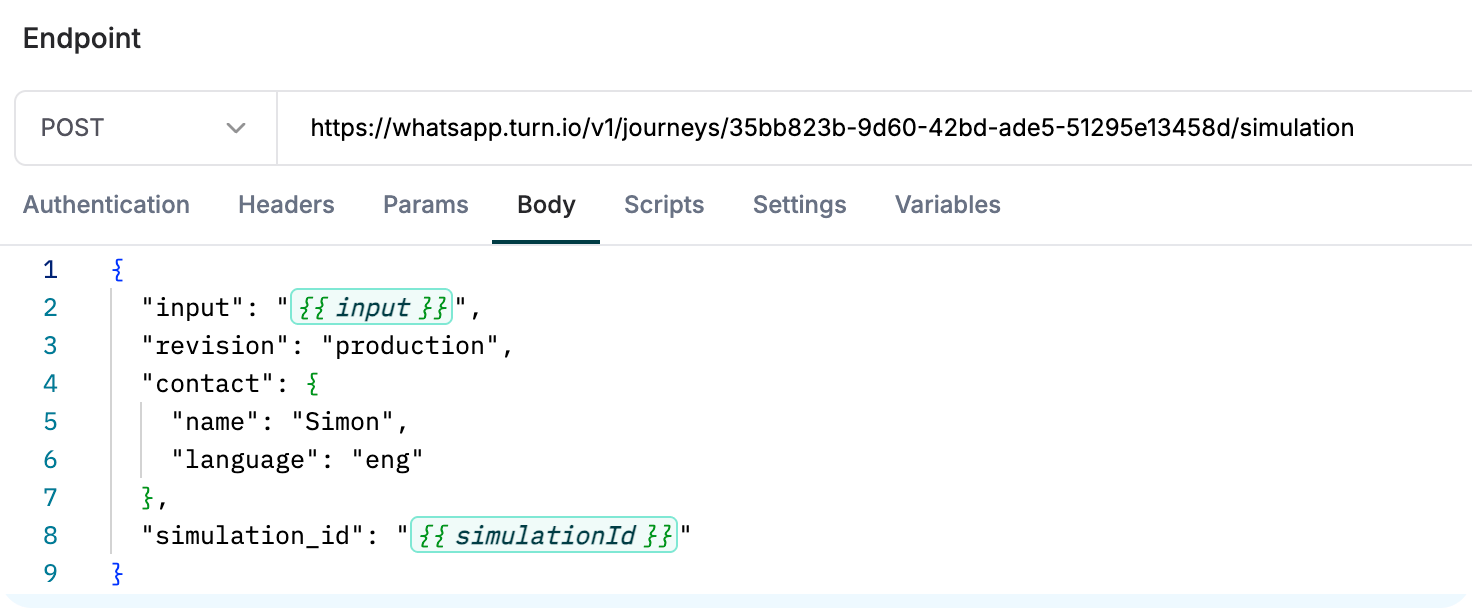
You can add extra columns for anything you want to vary per row — language, contact attributes, etc. Maxim will substitute them into your request template using the same {{column_name}} syntax you used in Step 3 of the single-run setup.
If your journey branches on contact fields (language, region, opt-in status, membership tier…), add those as columns in the dataset and wire them into the request body so each row exercises a different branch:
Go back to the Agent > HTTP Endpoint you created earlier
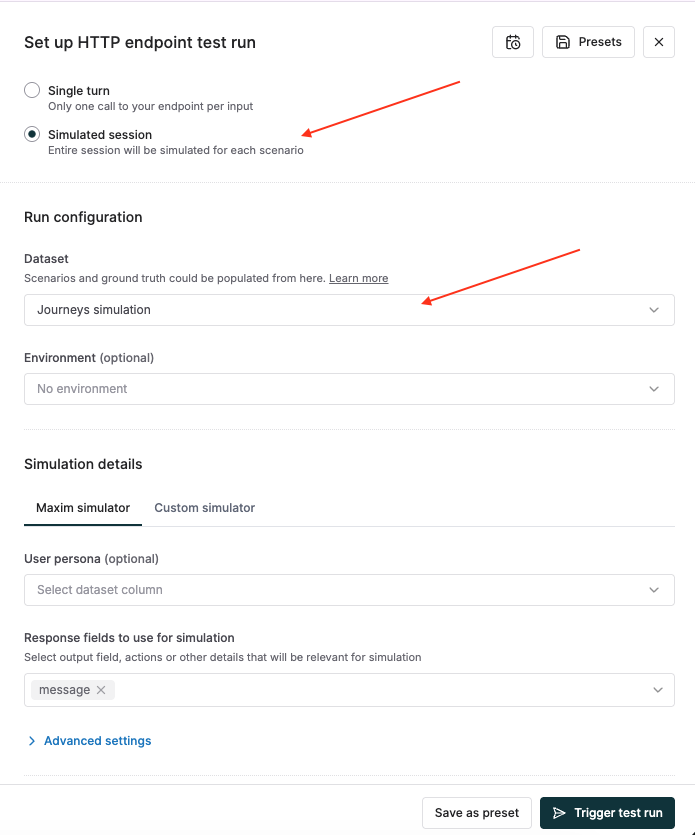
On the top-right, click the Test button to configure the test run
Switch the mode from a single run to a Simulated session and select the dataset you just created.
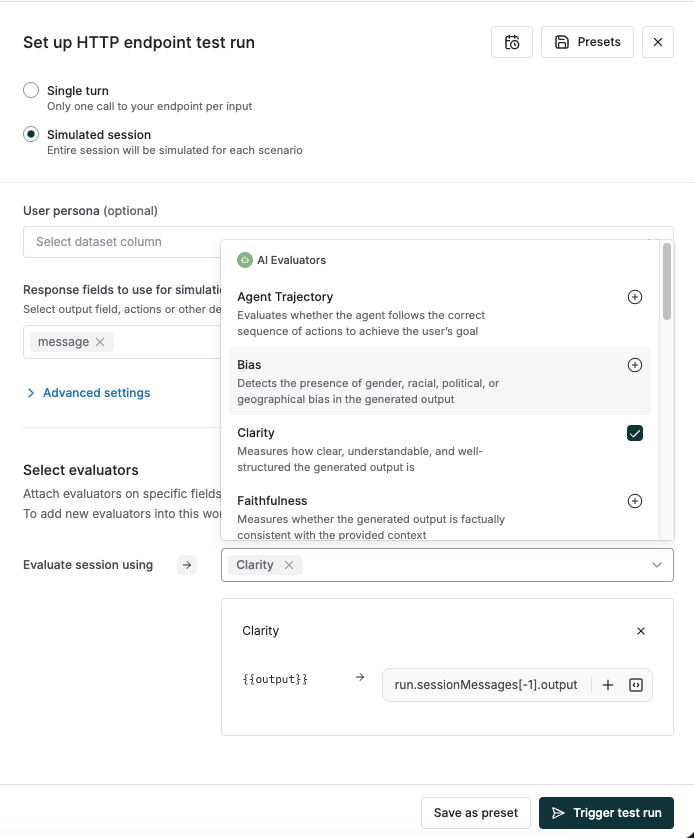
Confirm the persona, tools, reference context, and evaluators you want applied to every row. Anything you set here applies uniformly; anything that should vary per row belongs in the dataset.Note: To learn more about Evaluators and how to configure them, you can check out Evals & Logs.
Click Trigger test run.
Maxim will spin up one end-to-end conversation per dataset row and run them in parallel against the Turn's Simulation endpoint.
3.2 Read the results
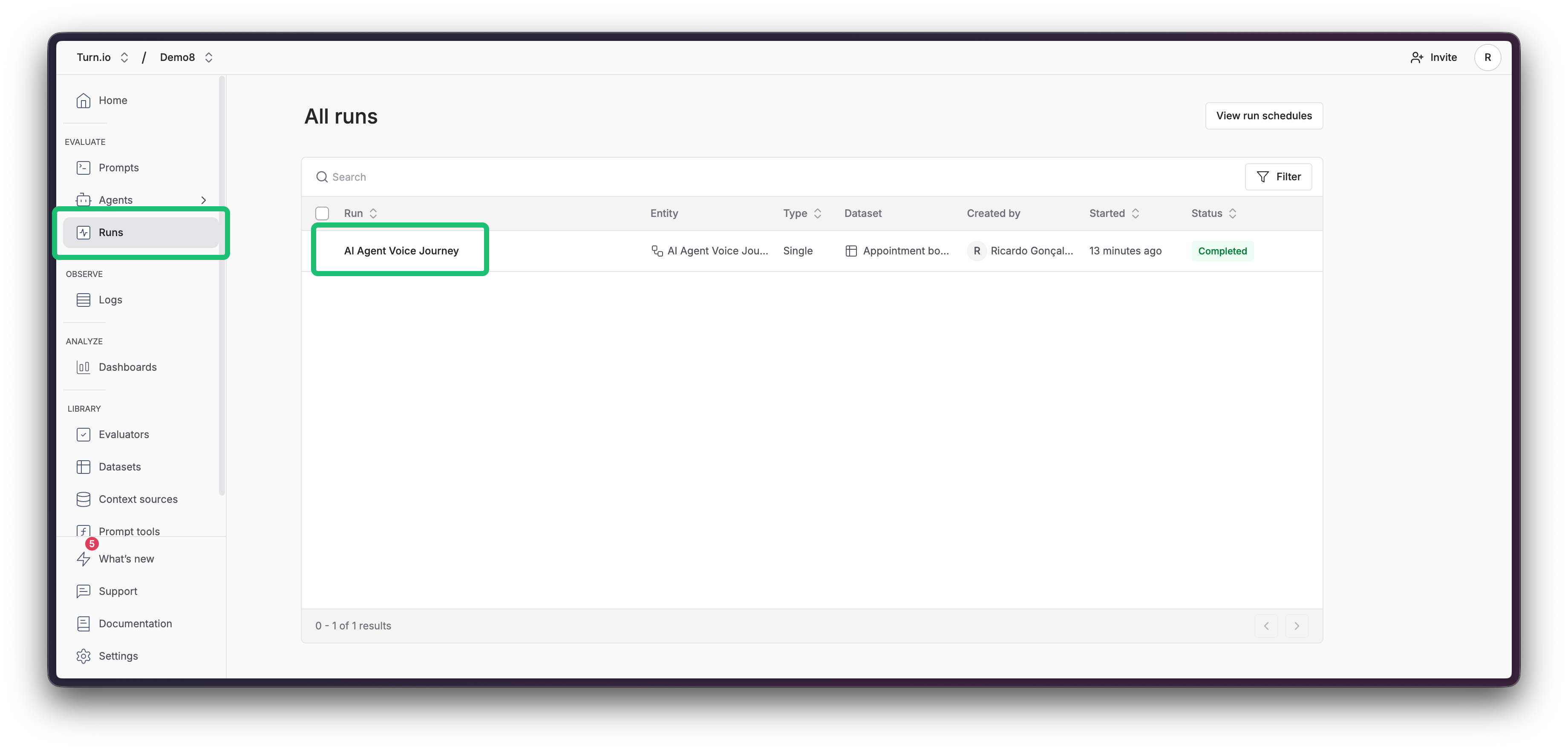
Go to Runs, find your Run, and once the test run completes, you're done! 🎉
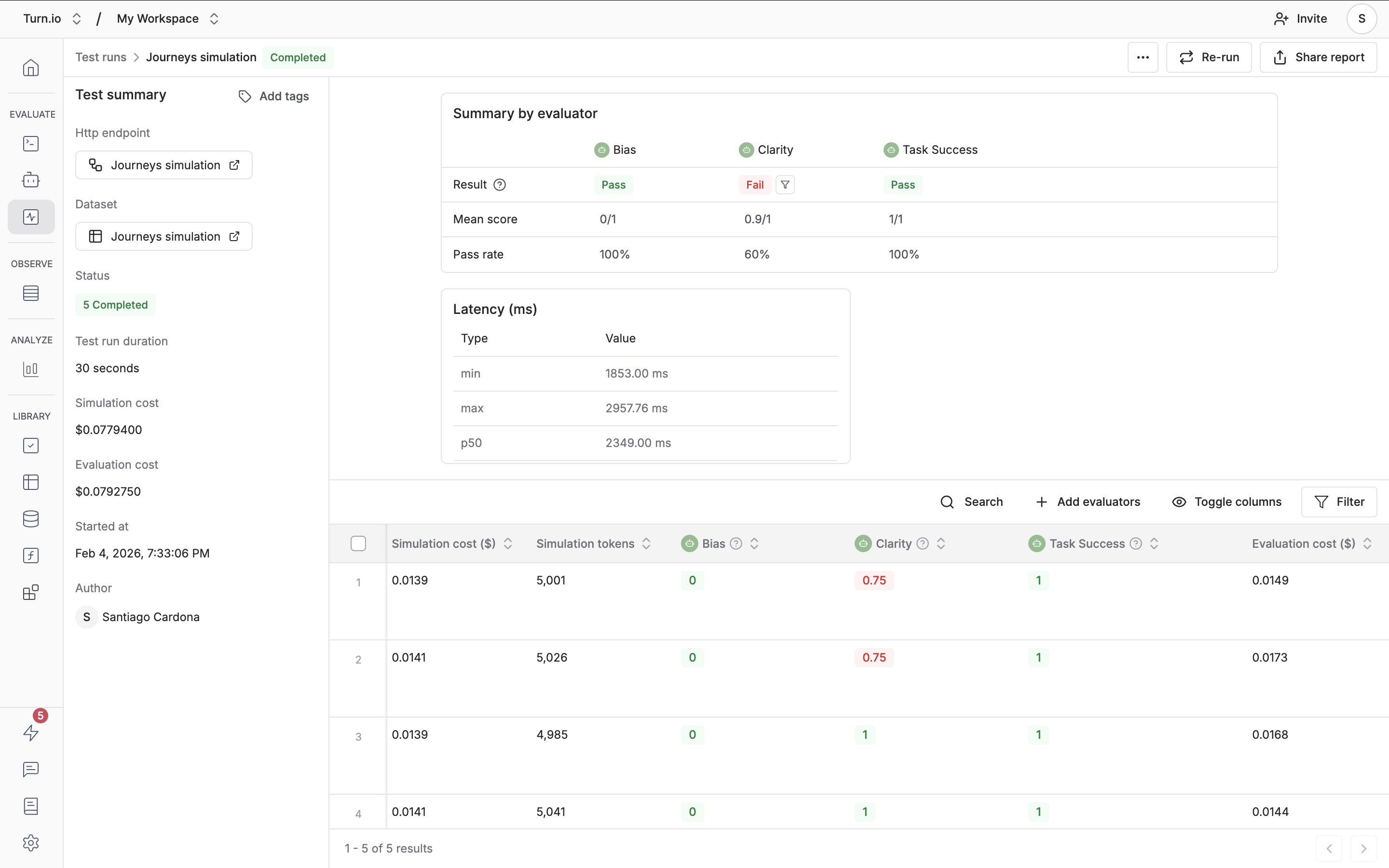
Here, you can see:
A summary view with pass/fail counts and aggregate evaluator scores across every row.
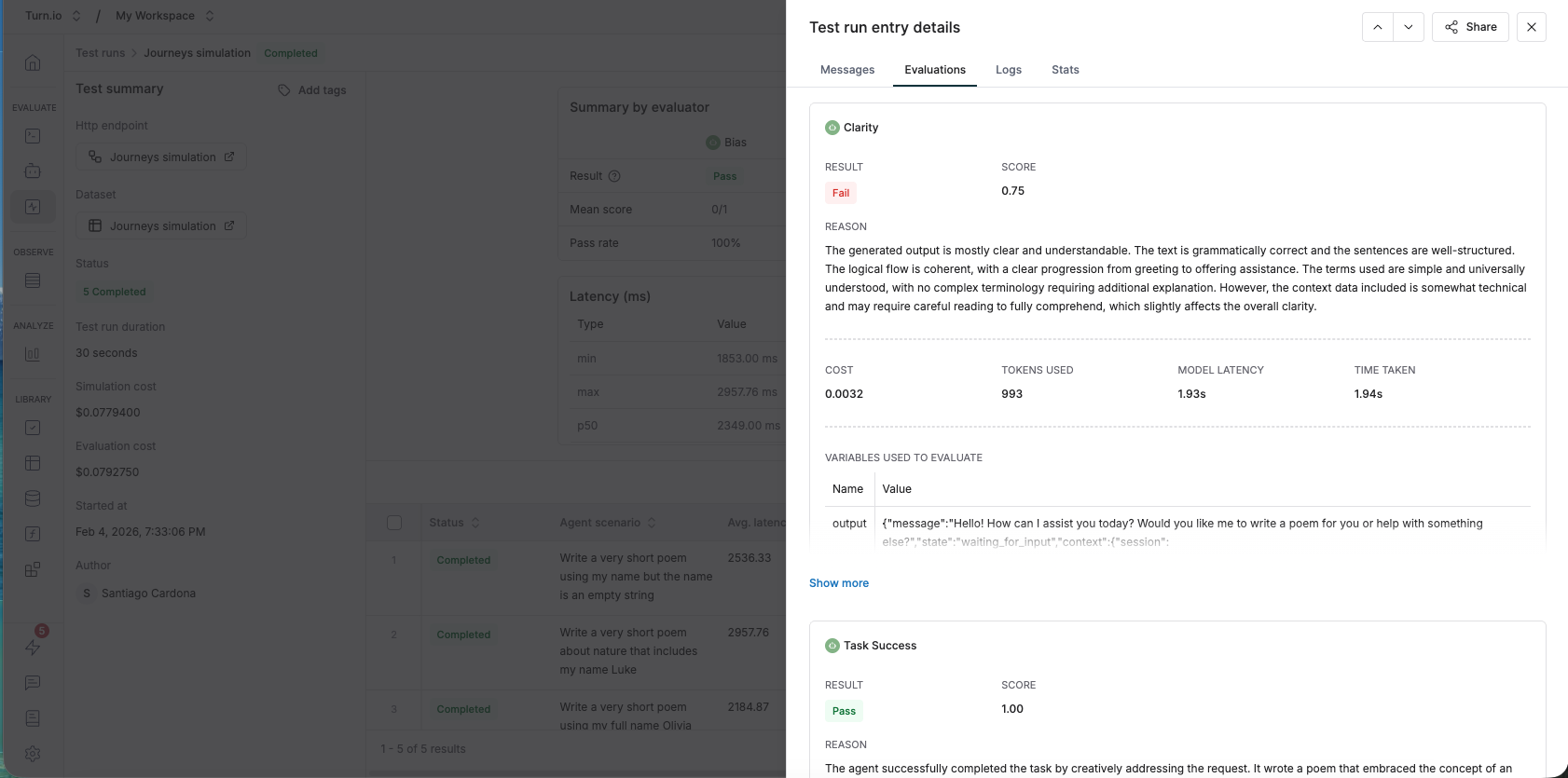
A per-row drill-down showing the full transcript, per-turn latency, evaluator scores, and — when a row fails — the exact turn where things went wrong.
Next steps
Although this setup process is lengthy, you mostly only need to do it once.
Anytime you need to re-run your simulation, simply come back to a past run and click on "Re-run".
If you need to change any parameters, go to your HTTP Endpoint, change them, and go back to Step 3.
Here are some ideas on what you can do next:
Run a baseline: kick off some runs across 3–4 personas and save the results as your baseline.
Wire it into your release flow: every time you publish a new revision of a journey, re-run the same suite against revision: "production" (or "staging" before publishing) and compare scores.
Investigate regressions: when an evaluator's score drops, open the transcript — Maxim shows you exactly the turn where the journey went off-rails.